

Plane Runner Enterprise Grid
Plane Runner is a secure, sandboxed execution engine that lets you write custom logic in JavaScript or TypeScript. You can use it to automate actions when events happen, run scheduled jobs, and enforce rules during workflow transitions.
Runner provides two building blocks — Scripts and Functions — that work together to extend Plane's behavior beyond what built-in automations offer.
Activate Plane Runner
Role: Workspace Admin
- Go to Workspace Settings > Plane Runner.
- Click Activate now under the Scripts card.
- On the authorization screen, review the permissions Runner requires — read and write access to all workspace resources and your user profile.
- Click Accept.
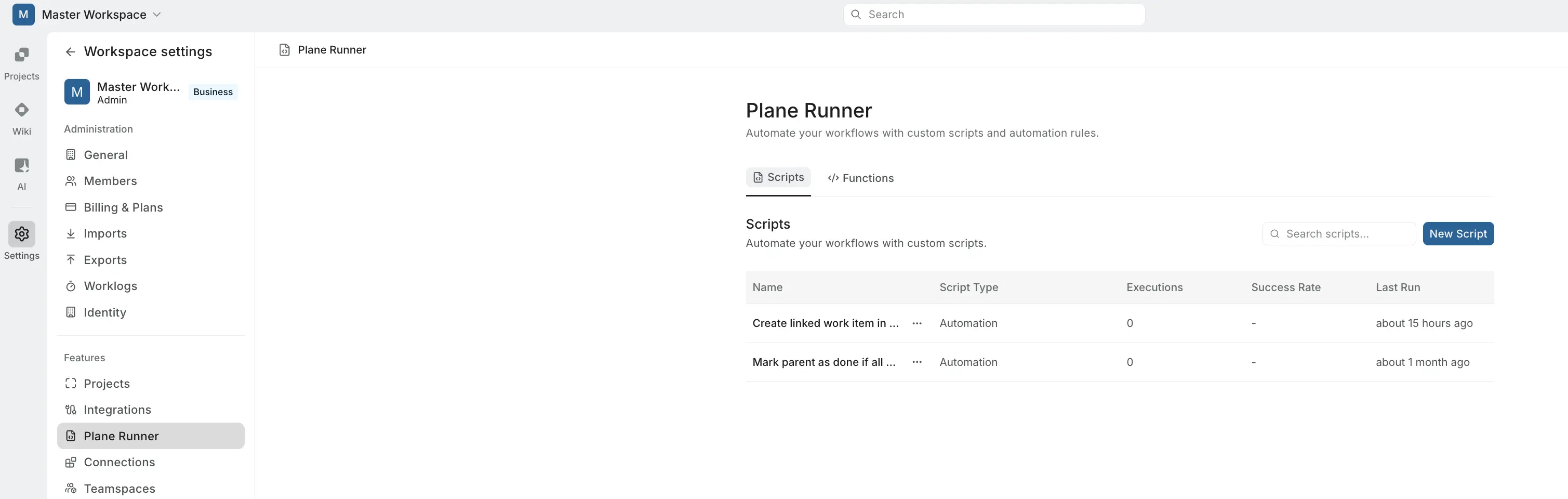
Once activated, you'll see the Scripts and Functions tabs in the Plane Runner settings page.
Building blocks
Scripts
A script is a piece of executable code that runs in response to a trigger. Scripts are the primary unit of custom logic in Plane Runner.
Each script is written in JavaScript or TypeScript, runs in an isolated sandbox, and has access to the Plane SDK, reusable functions, and environment variables. When triggered, a script receives contextual data about what caused it to run and returns a result indicating success or failure.
Scripts can be workspace-scoped (created by your team) or system-provided (built-in, read-only templates).
Functions
A function is a reusable, named piece of logic with defined parameters and return types. Functions work like utility libraries — you write them once and call them from any script.
Functions can also be workspace-scoped or system-provided.
The key difference: scripts are triggered by events, schedules, or transitions. Functions are called from within scripts.
How scripts are triggered
Scripts run in response to one of three trigger types. The trigger determines what data the script receives.
Event-based automations
Event-based automations run a script when something happens in your workspace — a work item's state changes, a new item is created, a label is added, and so on. The script receives the full event payload including the entity that changed, previous attributes, and the automation context.
export async function main(input: AutomationEventInput, variables: Record<string, string>) {
  // input.event — the Plane event that triggered this
  // input.context.automation_id — the automation rule ID
  // input.context.automation_run_id — this specific run's ID
  // variables — key-value pairs configured on the automation
}
Scheduled automations (cron)
Scheduled automations run a script on a recurring basis, such as daily or weekly. Since there's no triggering event, the script only receives variables.
export async function main(variables: Record<string, string>) {
  // variables — key-value pairs configured on the schedule
}
Workflow transitions
Workflow transitions invoke scripts during state changes. They serve two purposes:
Pre-conditions run before a transition to validate whether it should proceed. If the script returns an error or throws, the transition is blocked and the user sees the error message.
Post-operations run after a transition completes to perform follow-up actions like notifying a channel or creating related items.
export async function main(input: WorkflowTransitionEventInput, variables: Record<string, string>) {
  // input.event — the Plane event for the transition
  // input.context.workflow_transition_id — the transition ID
  // input.context.rule_id — the workflow rule ID
  // variables — key-value pairs configured on the rule
}
Create a script
Role: Workspace Admin
- Go to Workspace Settings > Plane Runner > Scripts.
- Click New Script.
- Enter a title for the script.
- Select a Script Type from the dropdown — Automation, Workflow Transition, or Cron Trigger.
- Expand the Variables section to define any key-value parameters the script needs. These values are provided when the script is attached to an automation rule or workflow.
- Write your script in the code editor. The editor includes IntelliSense — type
Plane.to see available API methods. You can also click the Functions button to browse available functions. - Click Save.
Script structure
Every script must export an async function main(...). This is the entry point that Runner calls when the script is triggered.
export async function main(input: AutomationEventInput, variables: Record<string, string>) {
  const projectId = input.event.project_id;
  const workItemId = input.event.entity_id;

  // Your logic here...

  return { success: true, message: "Done!" };
}
You can use TypeScript syntax freely — type annotations, interfaces, generics, enums, as const, optional chaining, and more are all supported.
The event object
For event-based and workflow scripts, the input.event object contains:
| Field | Type | Description |
|---|---|---|
event_id | string | Unique event identifier |
event_type | string | Type of event (e.g., work_item.updated) |
entity_type | string | Entity type (e.g., work_item) |
entity_id | string | ID of the affected entity |
project_id | string | Project where the event occurred |
workspace_id | string | Workspace ID |
initiator_id | string | User who initiated the action |
timestamp | number | Unix timestamp of the event |
payload.data | object | Current state of the entity |
payload.previous_attributes | object | Fields that changed (previous values) |
Variables
Variables are key-value string pairs that parameterize your script. Define them on the script and provide values when attaching the script to an automation rule, schedule, or workflow.
To define variables on a script, expand the Variables section when creating or editing:
[
  {
    "key": "sourceProjectId",
    "description": "Project ID to watch for changes",
    "required": true
  },
  {
    "key": "slackWebhook",
    "description": "Slack webhook URL for notifications",
    "required": false
  }
]
Access variables in your code:
export async function main(input: AutomationEventInput, variables: Record<string, string>) {
  const projectId = variables.sourceProjectId;
  const webhook = variables.slackWebhook;
}
Returning data
Scripts should return an object. The return value is stored in the execution record and can be inspected later.
// Success
return { updated: true, parentId: "abc-123" };

// Skipped (nothing to do)
return { skipped: true, reason: "Work item has no parent" };
If your script throws an error, the execution is marked as errored and the error details are captured.
Create a function
Role: Workspace Admin
- Go to Workspace Settings > Plane Runner > Functions.
- Click New Function.
- Enter a name and description.
- Select a Category from the dropdown — HTTP, Notifications, Data, Utils, or Custom.
- Expand Parameters to define input parameters. For each parameter, specify a name, type, description, and whether it's required.
- Enter a Return Type describing what the function returns (e.g.,
{ success: boolean }). - Write the function code in the Function Code editor.
- Click Create Function.
The function is now available to call from any script using Functions.yourFunctionName({ ... }). A usage example is auto-generated at the bottom of the form.
Using functions in scripts
Functions are available via the Functions global. Call them by name with a single parameter object:
export async function main(input: AutomationEventInput, variables: Record<string, string>) {
  // Call a system function
  const siblings = await Functions.getSiblings({
    projectId: input.event.project_id,
    workItemId: input.event.entity_id,
  });

  // Call a custom workspace function
  const result = await Functions.calculatePriority({
    severity: "high",
    isBlocking: true,
  });

  // Call another system function
  await Functions.addComment({
    projectId: input.event.project_id,
    workItemId: input.event.entity_id,
    comment: `Priority set to ${result.priority}`,
  });
}
Runner automatically detects which Functions.* calls your script makes during the build phase. Only the required functions are loaded at execution time — you don't need to import or configure anything.
Test a script
You can test a script without saving it or attaching it to an automation. Expand the Test section at the bottom of the script editor, provide test input data and variables, and run the script.
Testing validates the code for security violations, builds it (detecting function dependencies), executes it with the provided input, and returns the result or error details. Test executions are recorded with trigger_type: "test" so you can review output, timing, and errors separately from production runs.
Available globals
Every script runs in a sandboxed environment with these pre-injected globals.
Plane SDK (Plane)
A pre-initialized client for the Plane API. Use it to read and modify work items, projects, states, labels, and more.
// Retrieve a work item
const item = await Plane.workItems.retrieve(workspaceSlug, projectId, workItemId);

// Update a work item
await Plane.workItems.update(workspaceSlug, projectId, workItemId, {
  state: newStateId,
  priority: "high",
});

// Create a work item
const newItem = await Plane.workItems.create(workspaceSlug, projectId, {
  name: "Auto-created item",
  description_html: "<p>Created by automation</p>",
  priority: "medium",
});

// List states
const states = await Plane.states.list(workspaceSlug, projectId);

// List labels
const labels = await Plane.labels.list(workspaceSlug, projectId);

// Create a label
const label = await Plane.labels.create(workspaceSlug, projectId, {
  name: "auto-tagged",
  color: "#e53e3e",
});

// Add a comment
await Plane.workItems.comments.create(workspaceSlug, projectId, workItemId, {
  comment_html: "<p>Auto-comment</p>",
});

// Create a relation
await Plane.workItems.relations.create(workspaceSlug, projectId, workItemId, {
  relation_type: "relates_to",
  issues: [otherItemId],
});

// Advanced search
const results = await Plane.workItems.advancedSearch(workspaceSlug, {
  filters: { and: [{ parent_id: parentId }] },
  project_id: projectId,
});
The workspaceSlug global is also pre-injected and always available.
Functions library (Functions)
The collection of reusable functions, both system-provided and workspace-scoped. See Built-in system functions for what's available out of the box.
Environment variables (ENV)
A Record<string, string> containing environment variables configured on the script. Use these for secrets, API keys, or configuration that shouldn't be hardcoded.
const apiKey = ENV.EXTERNAL_API_KEY;
const webhookUrl = ENV.SLACK_WEBHOOK;
Fetch (HTTP requests)
A sandboxed fetch function for making HTTP requests. It works like the standard Fetch API but is restricted to domains explicitly allowed on the script. See Domain restrictions.
const response = await fetch("https://api.example.com/data", {
  method: "POST",
  headers: {
    "Content-Type": "application/json",
    Authorization: `Bearer ${ENV.API_TOKEN}`,
  },
  body: JSON.stringify({ key: "value" }),
});

const data = await response.json();
Built-in system functions
These functions are available in every workspace out of the box:
| Function | Category | Description |
|---|---|---|
Functions.httpRequest({ url, method?, headers?, body? }) | HTTP | Makes an HTTP request. Returns { status, headers, data }. Throws on non-2xx responses. |
Functions.postToSlack({ webhookUrl, text?, blocks? }) | Notifications | Posts a message to a Slack incoming webhook. Supports plain text and Block Kit. |
Functions.getChildren({ projectId, workItemId }) | Data | Returns all child work items of a given parent. |
Functions.getSiblings({ projectId, workItemId }) | Data | Returns sibling work items (same parent, excluding self). |
Functions.addComment({ projectId, workItemId, comment }) | Data | Adds a comment to a work item. Accepts plain text or HTML. |
Functions.addLabel({ projectId, workItemId, labelName, color? }) | Data | Finds a label by name (or creates it) and attaches it to a work item. |
Built-in system scripts
Plane ships with ready-to-use system scripts that cover common automation patterns. These are read-only templates that you can attach to automations or workflows directly.
Mark parent as done if all children are done — when a work item completes, checks all siblings. If every sibling is also completed, automatically marks the parent as done.
Create linked work item in another project — when a work item in a source project reaches a specified state, creates a copy in a destination project with a relates_to link.
System scripts appear alongside your custom scripts in the Scripts tab.
Security model
Runner executes scripts in a secure, isolated sandbox.
What's allowed
Standard JavaScript globals are available: JSON, Math, Date, Array, Object, String, Number, Boolean, RegExp, Map, Set, WeakMap, WeakSet, Promise, Symbol, Proxy, Reflect, URL, URLSearchParams, atob, btoa, encodeURI, decodeURI, encodeURIComponent, decodeURIComponent, setTimeout, clearTimeout, setInterval, clearInterval (function callbacks only), TextEncoder, TextDecoder, and standard error types.
Runner-specific globals are also available: Plane, Functions, ENV, fetch, workspaceSlug, and console.
What's blocked
| Category | Blocked | Reason |
|---|---|---|
| Module system | require, module, exports, import() | No filesystem or module access |
| Node.js APIs | fs, child_process, http, net, os, path, cluster, vm, worker_threads | No system access |
| Code execution | eval(), Function(), new Function() | Dynamic code execution risk |
| Process control | process.exit(), process.kill(), process.env | No process access |
| Prototype manipulation | __proto__, constructor, prototype | Sandbox escape prevention |
| Infinite loops | while(true), for(;;) | Resource protection |
| Implicit eval | setTimeout("string"), setInterval("string") | Must use function callbacks |
Domain restrictions
External HTTP requests via fetch or Functions.httpRequest are restricted to domains you explicitly allow. Configure the allowed_domains list on your script. Any fetch to a domain not on the list throws a "Domain not allowed" error.
Execution limits
| Limit | Default | Description |
|---|---|---|
| Execution timeout | 10 seconds | Maximum time a script can run |
| Initialization timeout | 5 seconds | Maximum time for script setup |
| Memory limit | 128 MB | Maximum memory per execution |
If a script exceeds any limit, the execution is terminated and marked as errored.
Examples
Auto-close parent when all children are done
When a work item moves to a completed state, check if all its siblings are also completed. If so, automatically mark the parent as done.
export async function main(input: AutomationEventInput, variables: Record<string, string>) {
  const projectId = input.event.project_id;
  const workItemId = input.event.entity_id;

  const item = await Plane.workItems.retrieve(workspaceSlug, projectId, workItemId);
  if (!item.parent) return { skipped: true, reason: "No parent" };

  const statesResult = await Plane.states.list(workspaceSlug, projectId);
  const states = statesResult.results || statesResult;
  const stateGroupMap: Record<string, string> = {};
  for (const s of states) {
    stateGroupMap[s.id] = s.group;
  }

  if (stateGroupMap[item.state] !== "completed") {
    return { skipped: true, reason: "Current item not in completed state" };
  }

  const siblings = await Functions.getSiblings({ projectId, workItemId });
  const allDone = siblings.every((s: any) => stateGroupMap[s.state_id] === "completed");

  if (!allDone) {
    return { skipped: true, reason: "Not all siblings are completed" };
  }

  const completedState = states.find((s: any) => s.group === "completed");
  await Plane.workItems.update(workspaceSlug, projectId, item.parent, {
    state: completedState.id,
  });

  return { updated: true, parentId: item.parent, stateId: completedState.id };
}Variables: None required. Functions used: getSiblings
Create a linked work item in another project
When a work item in a source project moves to a specific state, create a copy in a destination project and link them.
export async function main(input: AutomationEventInput, variables: Record<string, string>) {
  const sourceProjectId = variables.sourceProjectId;
  const sourceProjectStateName = variables.sourceProjectStateName;
  const destinationProjectId = variables.destinationProjectId;
  const projectId = input.event.project_id;
  const workItemId = input.event.entity_id;

  if (projectId !== sourceProjectId) {
    return { skipped: true, reason: "Not in source project" };
  }

  const statesResult = await Plane.states.list(workspaceSlug, sourceProjectId);
  const states = statesResult.results || statesResult;
  const targetState = states.find(
    (s: any) => s.name.toLowerCase() === sourceProjectStateName.toLowerCase(),
  );
  if (!targetState) {
    return { skipped: true, reason: "State not found: " + sourceProjectStateName };
  }

  const item = await Plane.workItems.retrieve(workspaceSlug, sourceProjectId, workItemId);
  if (item.state !== targetState.id) {
    return { skipped: true, reason: "Work item not in target state" };
  }

  const newItem = await Plane.workItems.create(workspaceSlug, destinationProjectId, {
    name: item.name,
    description_html: item.description_html,
    priority: item.priority,
  });

  await Plane.workItems.relations.create(workspaceSlug, sourceProjectId, workItemId, {
    relation_type: "relates_to",
    issues: [newItem.id],
  });

  return { created: true, newWorkItemId: newItem.id, destinationProjectId };
}Variables:
| Key | Required | Description |
|---|---|---|
sourceProjectId | Yes | Project ID to watch for state changes |
sourceProjectStateName | Yes | State name that triggers the copy (e.g., "Ready for QA") |
destinationProjectId | Yes | Project ID where the new work item is created |
Post to Slack on state change
Notify a Slack channel whenever a work item moves to "In Review".
export async function main(input: AutomationEventInput, variables: Record<string, string>) {
  const projectId = input.event.project_id;
  const workItemId = input.event.entity_id;

  const item = await Plane.workItems.retrieve(workspaceSlug, projectId, workItemId);

  const statesResult = await Plane.states.list(workspaceSlug, projectId);
  const states = statesResult.results || statesResult;
  const currentState = states.find((s: any) => s.id === item.state);

  if (currentState?.name !== "In Review") {
    return { skipped: true, reason: "Not in 'In Review' state" };
  }

  await Functions.postToSlack({
    webhookUrl: variables.slackWebhook,
    text: `Work item "${item.name}" is now In Review\nProject: ${projectId}`,
  });

  return { notified: true, itemName: item.name };
}Variables:
| Key | Required | Description |
|---|---|---|
slackWebhook | Yes | Slack incoming webhook URL |
Allowed domains: hooks.slack.com
Enforce a workflow pre-condition
Block a transition from "To Do" to "In Progress" unless the work item has an assignee and an estimate.
export async function main(input: WorkflowTransitionEventInput, variables: Record<string, string>) {
  const projectId = input.event.project_id;
  const workItemId = input.event.entity_id;

  const item = await Plane.workItems.retrieve(workspaceSlug, projectId, workItemId);

  const errors: string[] = [];

  if (!item.assignees || item.assignees.length === 0) {
    errors.push("Work item must have at least one assignee");
  }

  if (!item.estimate_point) {
    errors.push("Work item must have an estimate");
  }

  if (errors.length > 0) {
    throw new Error("Transition blocked: " + errors.join("; "));
  }

  return { allowed: true };
}
Attach this script as a pre-condition on the "To Do → In Progress" workflow transition. If the script throws, the transition is blocked and the user sees the error message.